Server is starting up (free plan sleeps when idle) — this can take up to a minute…
ETAX

Sign in

ETAX

What would you like to use?

You can switch any time from the menu on the left.

ETAXFBR Digital Invoicing

Admin in the workspace of — test invoices you send here are filed for this client.

Needs your attention

Register client

Users waiting for approval

Added by a client's owner. They cannot log in until you approve.

Clients

CompanyLogin & mobileStatusIntegratedFBR set-upThis monthExpiryLast invoice

Set up:

Access period

How long this client may use the application. After the last day it keeps working for a few days of grace (3 for a monthly plan, 7 for a yearly one), then it is made inactive by itself. Renewing makes it active again.

Renew
Added to the last day, or to today if the period has already ended. A client switched off because its period ended becomes active again.

Plan & limits

How much this client may add: branches, terminals (counters), products and users, as on the website. A client with no plan, or on Enterprise, has no limits. Moving to a smaller plan never removes anything: the client keeps what it has, and adds nothing more until it is back under the limit.

Modules

What this client can use. With more than one switched on, the user picks which to open after logging in.

1

Client profile (as in IRIS)

Copy from the client's IRIS profile. Fields marked (Sent to FBR) go on every invoice — FBR rejects the invoice if they differ from IRIS.

· Name and address are not available from FBR's API — look them up in IRIS → Online Verifications → Taxpayer Profile Inquiry, then copy them here.
Business nature — same as chosen in IRIS (tick all that apply)
Sector — same as chosen in IRIS (tick all that apply)
2

FBR token

From IRIS → Digital Invoicing → API Integration. Sandbox token while testing; the production token replaces it in step 4.

Asks FBR for its province list with the token (records nothing at FBR) — the one typed above, else the saved one.
Auto from FBR — HS codes: …
3

Sandbox scenarios

One test invoice per scenario to FBR's sandbox — then IRIS shows them Successful and issues the production token.

4

Go live

When IRIS shows every scenario Successful: production token, Production environment, then the first real invoice.

  1. Copy the production token from IRIS → Digital Invoicing → API Integration → Production Environment.
  2. In step 2: paste it, set Environment to Production, Save, then Test FBR connection.
  3. The client files their first real invoice; check it in IRIS (production).
5

Invoice settings & users

Used inside ETAX — not sent to FBR.

Note: {YYYY} = year, {YY} = short year, {MM} = month, {NNNN} = running number.

Point of Sale (PRA)

What this client has set up. The counters, PRA tokens and items are kept by the client's owner (or by you, in the workspace).

Loading…

Users — Owner: everything + users · Accountant: invoicing, debit notes, import, products, buyers · Cashier: create & print invoices only

UserRoleStatusLast login

New users and reset passwords must be changed by the user at their next login.

Annex-C report — sales filed with FBR, item-wise, same columns as IRIS Annex-C

Annex-H1 stock statement — HS-code-wise opening, purchases, supplies and closing stock for the client and month chosen above

Supplies come from invoices filed with FBR; purchases, imports, opening stock and adjustments from the client's Stock page.

HS code → sale type and rate — suggested on the invoice form when an HS code is chosen (CA's Document 1). Codes with no rule get the standard rate, 18%. The client can still change it.

HS codeConditionSale typeRateSRO / ScheduleItem Sr.Note / sourceChecked

Where the rules come from — check these when FBR issues something new

  • Customs Tariff (PCT / HS codes) — 2017 edition; the HS list in ETAX comes from it
  • Sales Tax Act, 1990 — updated every year (budget)
  • Sales Tax Rules, 2006 — updated every year
  • Sales tax SROs — can be issued at any time
  • Sales tax circulars — can be issued at any time
  • Sales tax general orders — can be issued at any time
  • FBR notice board — new updates to the sales tax law
  • All tax laws

Tax rules data bank — every client's tax rules against their items. User name and industry come from each client's DI settings; the rest is as the client set it.

Same columns as the client's Items with Tax Rules page, with the client in front. Scroll right to see all columns →

User nameUser industryNTNSTRNCNICNameDescriptionNotesHS codeSourceUOMPricesSale typeRateReferencesCommentMore taxesSince

Activity log — who did what; entries can't be edited or deleted

TimeUserActionWhat happened

Website enquiries

Open the contact page
ReceivedName / businessContactType / interestMessageStatus
IP for FBR whitelisting: —

Client guidelines — the buttons on every client's Items with Tax Rules page. Update the links when FBR publishes a new Act, SRO list etc.

OrderButtonLinkUpdated

FBR references — Sales Tax Act and Rules, SROs, circulars, general orders and notices copied from fbr.gov.pk once a day; clients search them on the Items with Tax Rules page

…
HS codes: … — synced from FBR automatically every week once a client token works; per client under Clients → Manage.
+ New invoice ▶ How ETAX works (1-min demo) Draft invoices Issued invoices

Latest invoices

Sales invoice

1

Document

Invoice date and document details — number and FBR number come automatically

Invoice Number (automatic)
—
FBR Invoice Number (automatic)
given by FBR when the invoice is issued
Invoice Type
Sale Invoice
Sale Origination Province
—
2

Buyer

Search a saved buyer (details are fixed), add a new customer, or leave empty for a walk-in customer

Particulars of buyer

3

Items

Pick items with a tax rule — only the quantity and the item’s own prices can change

4

Review & submit

Exactly what FBR receives, the totals and the whole-invoice discount — then submit

Sent to FBR — invoice header (exactly what FBR receives; updates as you fill the form)

Value of Sales Excl. ST
0.00
Sales Tax / FED in ST
0.00
Further Tax
0.00
Value incl. Sales Tax
0.00

Ask a question or send feedback — ETAX replies here; you'll see the answer under "Your queries"

Your queries

How ETAX works — four steps from a new buyer to an invoice filed with FBR

Watch the 1-minute demo, or follow the steps below. Each step opens the page where you do it.

+ Create an invoice
Your browser can't play this video — follow the steps below.
Buyers page with the buyer form filled in
1

Add your buyer

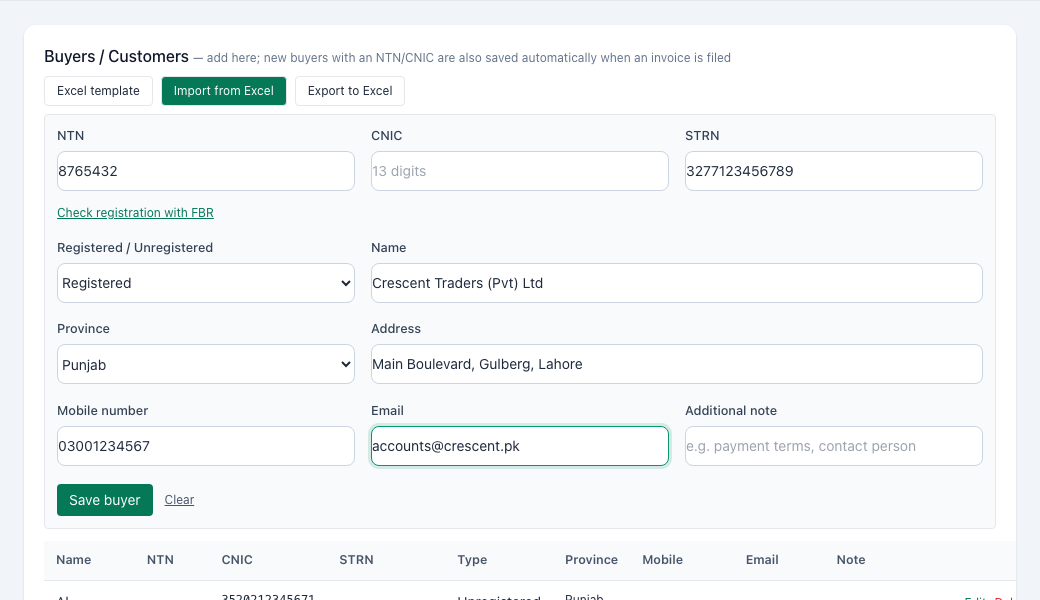
  • Open Buyers / Customers.
  • Enter the NTN or CNIC, STRN, registered / unregistered, name, province and address.
  • Add mobile, email and a note if you like, then Save buyer.
  • Many buyers at once? Use Excel template → Import from Excel.
Go to Buyers / Customers →
Items with Tax Rules form with the sections filled in
2

Set up your items and tax rules

  • Open Items with Tax Rules → + Add / edit item.
  • 1 Item details and 2 Prices (one or more, e.g. Retail and Wholesale).
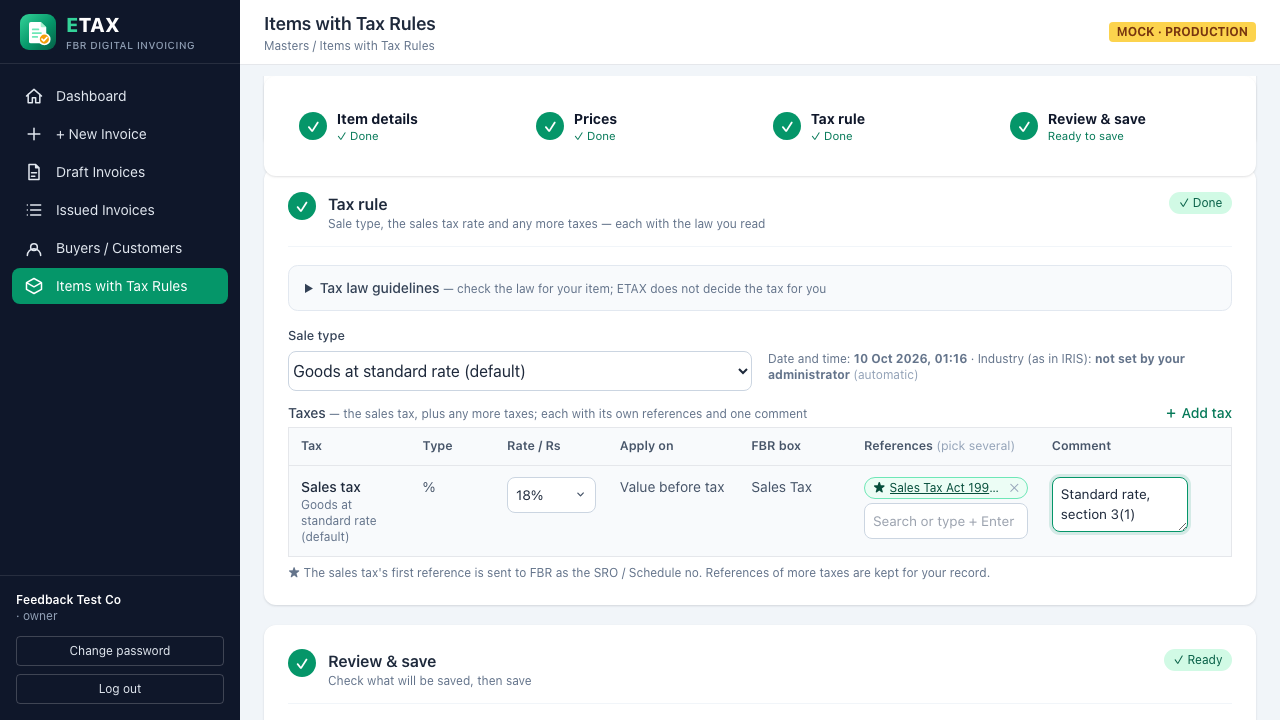
  • 3 Tax rule: sale type, sales tax rate, references and a comment if you like (optional) and any more taxes.
  • 4 Review & save — every section shows a green ✓ when it is complete.
Go to Items with Tax Rules →
New invoice with the buyer and item chosen
3

Create a new invoice

  • Open + New Invoice.
  • Buyer: search a saved buyer, + Add new customer, or Walk-in customer.
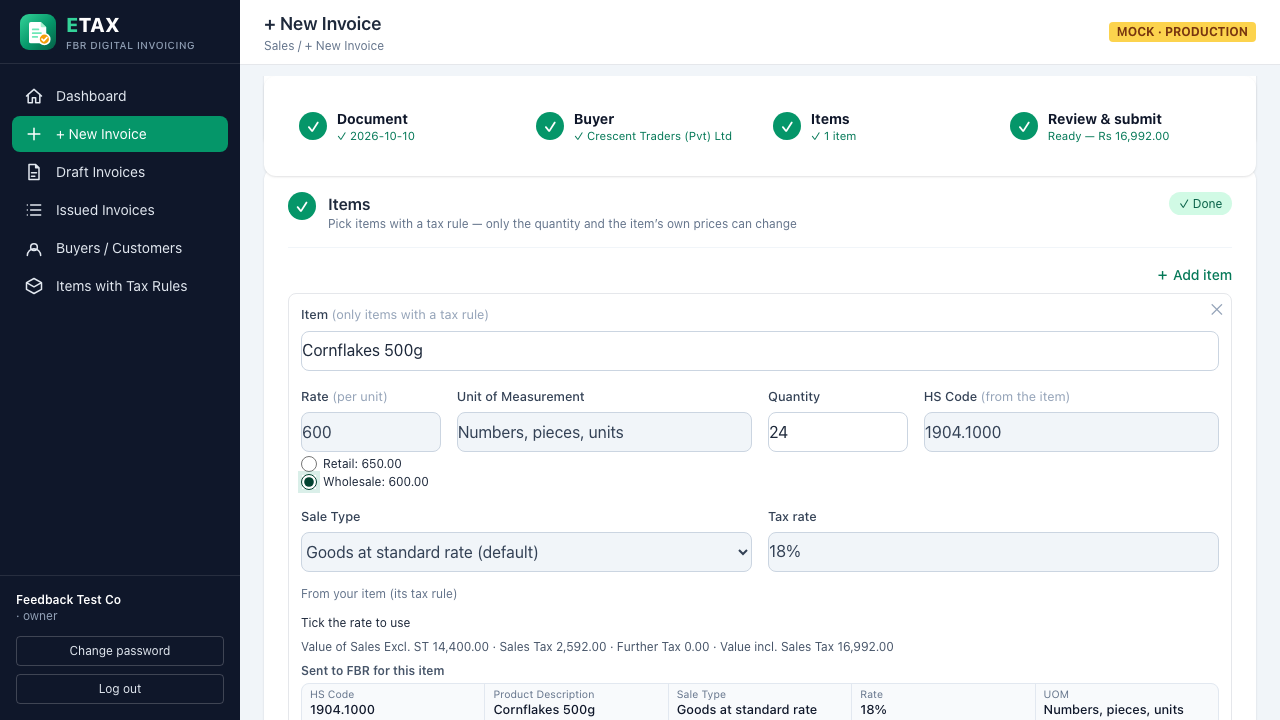
  • Items: pick the item, enter the quantity and tick the price — the tax is calculated automatically.
  • Under each item you see exactly what is sent to FBR.
Go to New Invoice →
Receipt with the FBR invoice number and QR code
4

Save as draft, or submit to FBR

  • Save as draft to finish later (Draft Invoices), or Submit to FBR.
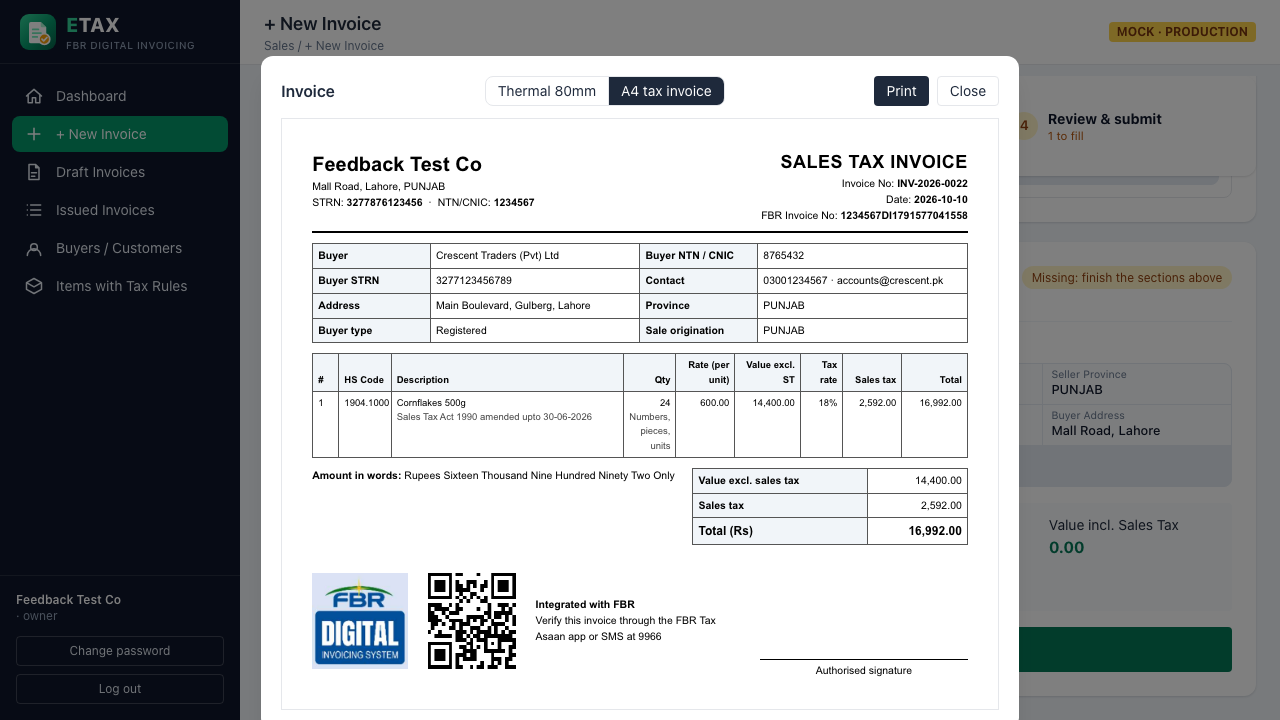
  • FBR returns its invoice number; print the A4 invoice or the 80 mm receipt with the QR code.
  • The invoice is now Issued (Locked) — corrections go through a debit note.
  • Find every filed invoice under Issued Invoices.
Go to Issued Invoices →

Drafts — saved invoice forms, not filed with FBR yet. They don't use an invoice number.

SavedBuyerTypeItemsTotalBy
+ New invoice
Quick:
Invoice #DateBuyerScenarioTotalStatusFBR invoice no.

Bulk import — many invoices from Excel/CSV: one row per item, rows with the same Invoice Ref become one invoice

Only items with a tax rule appear on invoices.

My items — each item with its tax rule

Scroll right to see all columns →

NameDescriptionNotesHS codeSourceUOMPricesSale typeRateReferencesCommentMore taxesSinceAdded on

📘 Tax law guidelinesCheck the law for your item; ETAX does not decide the tax for you

1

Item details

What the item is — all fields are required

2

Prices

One or more named prices — on the invoice the user ticks one (e.g. Retail 150 · Wholesale 140)

3

Tax rule

Sale type, the sales tax rate and any more taxes — each with the law you read

Date and time: — · Industry (as in IRIS): — (automatic)
Taxes — the sales tax, plus any more taxes; each with its own references and one comment. More taxes go to FBR's Extra Tax or FED Payable box; FBR does not accept Extra Tax for some sale types (error 0091) — test in sandbox.
TaxTypeRate / RsApply onFBR boxReferences (pick several)Comment
Sales tax
%

Value before tax Sales Tax

FBR's own lists are used when your FBR token works: the rate for the sale type, then the SRO / Schedule and its item serial (spec §5.8 → §5.7 → §5.10). Without them, type the SRO / Schedule no. and serial. References and comments are optional — kept for your record.

Tax on each price — worked out as you fill the form, for 1 unit

4

Review & save

Check what will be saved, then save

Changing the tax rule replaces the item's current rule from now on. Invoices already filed keep the tax they were filed with; old rules stay in the item's history.

Add stock entry — sales are taken automatically from invoices filed with FBR

Stock in hand — today

HS codeDescriptionUOMIn handValue (avg. cost)

Entries

DateTypeHS codeDescriptionQtyUOMValueSupplier / ref

Users — Owner: everything + users · Accountant: invoicing, debit notes, import, products, buyers · Cashier: create & print invoices only

UserRoleStatusLast login

New users and reset passwords must be changed by the user at their next login.

Buyers / Customers — add here; new buyers with an NTN/CNIC are also saved automatically when an invoice is filed

NameNTNCNICSTRNTypeProvinceMobileEmailNoteAdded on

Add new customer

Change password

Please set your own password before continuing.

Invoice